A different pie for every app
Keep one general menu, then give your browser, code editor or favorite apps their own.

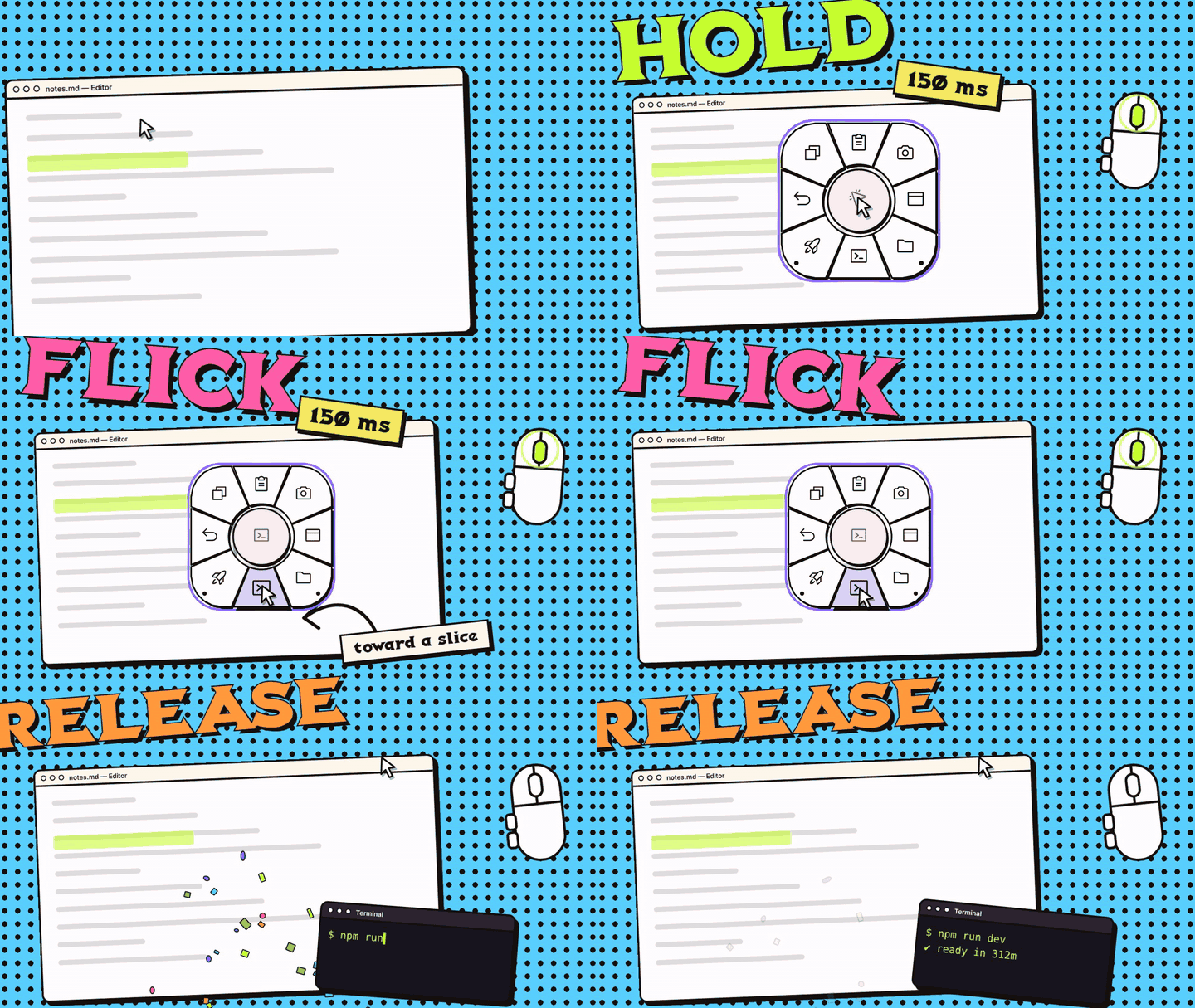
CursorPie is a pie menu that pops up right under your pointer. Hold a mouse button (or touch and hold your trackpad), flick toward an action, let go. Shortcuts, apps, links and commands, zero hunting through menus.
Press and hold, move toward a slice, then release.
The actions you use most should not live in menus or in your memory. Just move your mouse or your finger.
Hold the middle mouse button, or touch and hold your trackpad, for a split second (150 ms by default). The pie appears right under your cursor.
Move toward the action you need. The slice lights up as your pointer passes over it. Muscle memory takes over fast.
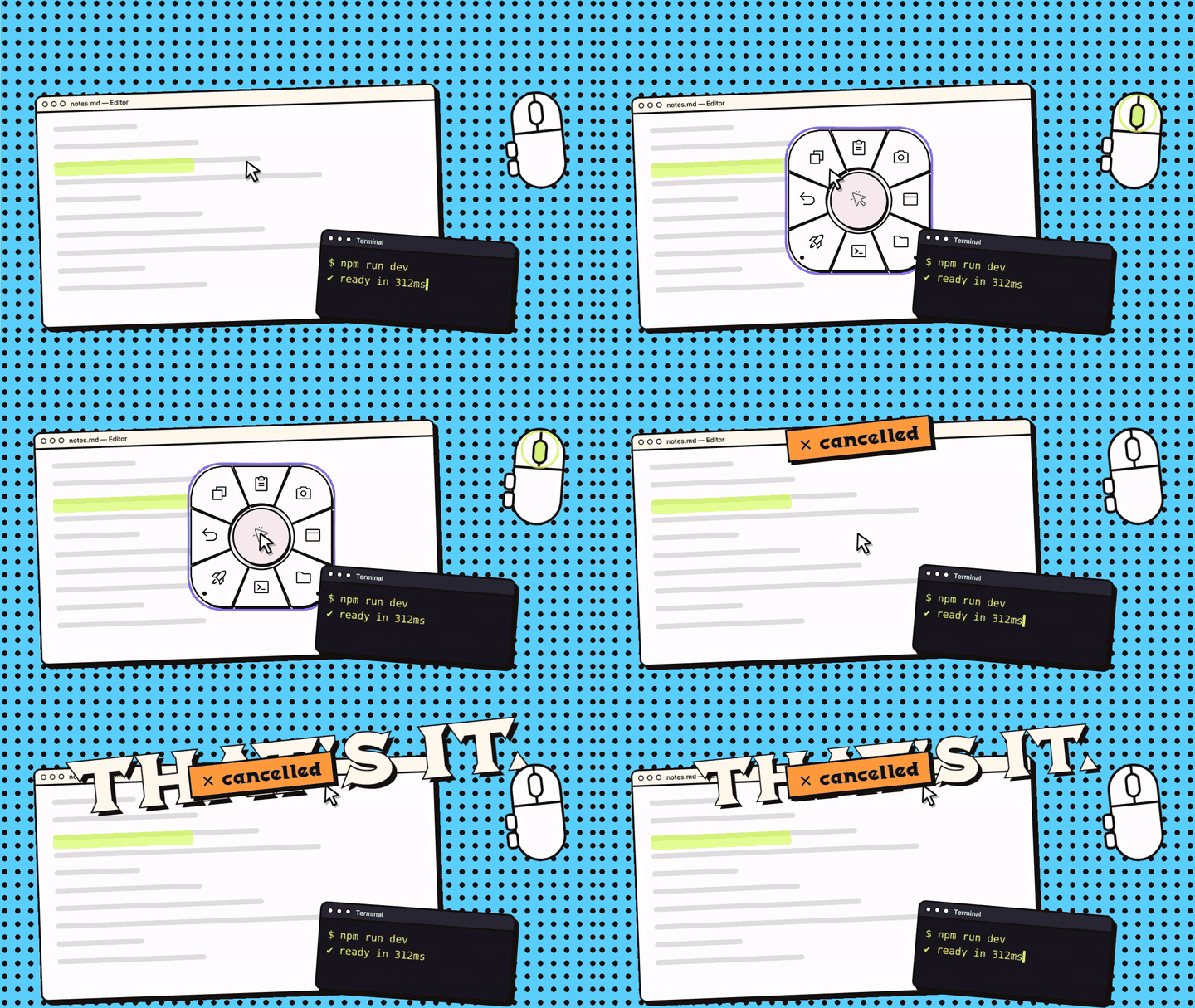
Let go and the action runs. Release in the center to cancel. Keep holding in the center and Settings opens after 1.2 seconds.
A clickable scroll wheel or a trackpad is all you need. Trackpad hold works on macOS, Windows and Linux; turn it on in Settings > Behavior > Trackpad.
Short clips of the gesture, the actions and Settings. Swipe or use the arrows; each clip loads when it comes close.












From one-key shortcuts to app-specific workflows, CursorPie bends to the way you work.
Keep one general menu, then give your browser, code editor or favorite apps their own.
Send keyboard shortcuts, open apps, links or files, run commands, or chain several into one.
Up to 8 slices per ring and 5 levels deep.
Map back and forward buttons to Undo/Redo, tabs or zoom. No middle button? Use a trackpad hold.
Settings has undo, redo and automatic backups of earlier saves.
Export a full profile, icons included, as one JSON file and hand it to a friend.
Draw multi-step flows in a node editor, show small panels, and control media, tabs and chats in your browser.
Learn about flowsPick a flow, press Install and CursorPie wires it up. No extension? You get a normal download.
CursorPie runs on your computer and stays out of sight until you hold the trigger. The only network request it ever makes is an optional once-a-day update check to api.github.com, which you can switch off in About > Updates.
Choose the package that matches your system.
Windows 10 (1809) or 11. Per-user installer, no special permissions. Trackpad hold needs a precision touchpad.
macOS 11+, Intel and Apple silicon. Accessibility permission is required. Any trackpad works for trackpad hold.
x86_64 builds for Ubuntu 24.04+ and Fedora 44. X11 needs nothing set up. Wayland needs a udev rule. Trackpad hold needs your user in the input group (or the udev rule on Wayland).
This build is not signed yet. Select More info, then Run anyway if you choose to continue.
On first launch, right-click the app and choose Open, then grant Accessibility permission.
Extract the package and run install.sh. On Wayland also install the udev rule (see the Linux guide). A tray icon is not available yet.
The installation guide covers Windows, macOS and Linux step by step.
Still stuck? The known issues page lists what does not work yet, per system.
Yes. CursorPie is open source under the MIT license, with no account and no ads.
No account, no telemetry. Keyboard events are read only while you record a shortcut in Settings; otherwise events are passed through and are not stored or logged. The one network request is the optional update check: when Settings opens, at most once a day, CursorPie asks api.github.com for the newest stable release. Turn it off in About > Updates. See Updates.
Yes, with a trackpad. Turn on Open the pie with a trackpad hold in Settings > Behavior > Trackpad, then touch and hold. It works on macOS, Windows (precision touchpads) and Linux, X11 or Wayland (your user must be in the input group, or on Wayland the udev rule must be installed). With a mouse, a clickable scroll wheel is enough. On macOS, some additional mouse buttons can also be triggers.
It is off by default and new, so it has not been tried on every device. macOS reads any trackpad, Windows needs a precision touchpad, and Linux reads the touchpad from /dev/input. Haptic ticks exist on macOS only. See the trackpad guide.
Hold in the center of the pie to open Settings. From there, add actions, change icons, and set up pies for specific apps.
Yes, but it is experimental; X11 is pre-stable. On Wayland CursorPie grabs the mouse through /dev/input, so it needs the udev rule 70-cursorpie.rules that ships in the package. Per-app profiles work on KDE Plasma, Hyprland, GNOME (with the extension) and, mostly, Sway. Wayland support has not yet been run on real hardware, and a tray icon is not available yet. See the Linux guide.
Install it in a minute, hold, flick, release. The docs are here when you want to go deeper.